In Microsoft Dynamics 365 Business Central, you can create relationships between number series using the “No. Series Relationships” functionality. This allows multiple number series to be used interchangeably for the same document type, such as Sales Orders or Purchase Orders, offering flexibility and better organization.
Steps to Create Relationships Between Number Series
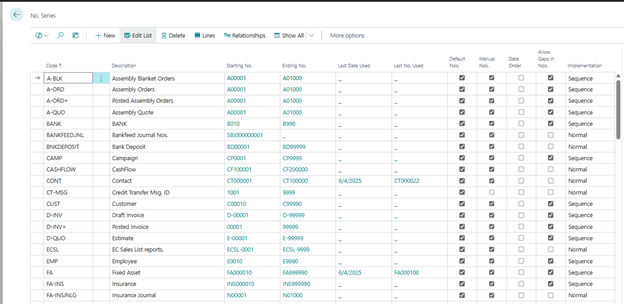
- Go to No. Series Page
- Search for “No. Series” using the Tell Me feature (🔍).
- Open the page and locate the primary number series you want to define relationships for.
Use Case Example
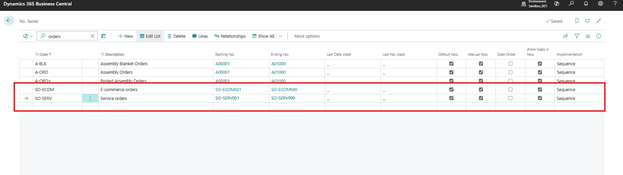
Suppose you want to maintain different No. series for Sales Orders based on the origin:
- SO-ECOM for E-commerce orders
- SO-SERV for Service orders
- Open the No. Series Relationships Page
- Select the number series you want to create a relationship for.
- Click on Related > Series > Relationships from the action bar.
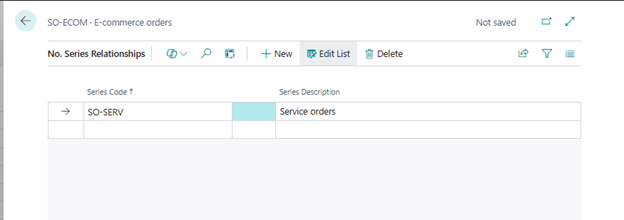
- Add Related Number Series
- In the “No. Series Relationships” page, add the other number series you want to associate with the main one.
- These related series will now be available when the user is selecting a No. series for that document type.
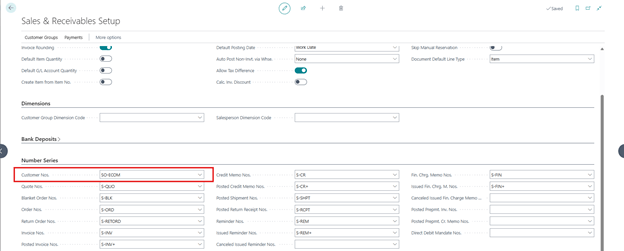
- Assign the Primary No. Series in the Setup
- For example, in Sales & Receivables Setup, assign the main number series under the relevant document (e.g., Sales Orders).
- Once assigned, the user will still be able to select from the related series during transaction entry.
Set one as the main number series and define the other as a related series. Users can then choose the appropriate series when entering orders.
Notes:
- Make sure users have permissions to select from multiple number series.
- Ensure each related number series has its own setup (e.g., starting number, ending number, increment).
This setup is especially useful in multi-channel businesses or where process segregation is needed (e.g., wholesale vs retail, domestic vs international).
 Dynamics Decoded
Leave a comment