If you’re anything like me, you’ve been handed a reporting task that feels more like a data scavenger hunt. You need to create Power BI dashboards, but the data? It’s scattered across SQL Server, Excel files, JSON documents in Cosmos DB, and Azure Analysis Services. Sound familiar?
Welcome to the real world of reporting.
A Familiar Scenario
You work at Tailwind Traders. Leadership needs a suite of reports that combines sales transactions, employee details, shipping records, and financial projections. Here’s the catch:
- Sales data is in a SQL Server relational database.
- Employee details are buried in Excel files maintained by HR.
- Shipping records are JSON documents living in Cosmos DB.
- Forecasts come from Azure Analysis Services.
Each system is unique, but Power BI ties them all together.
First Stop: Power Query
Before building those eye-catching visuals, you’ve got to get the data into shape. That’s where Power Query comes in.
With Power Query, you can:
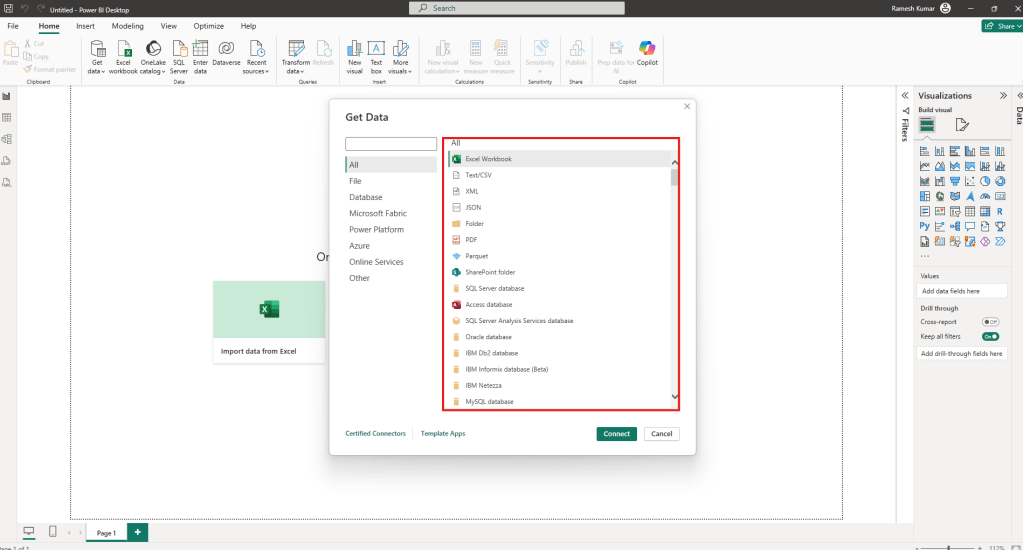
- Connect to all these sources
- Clean and transform the data (rename columns, remove errors, replace values)
- Combine and shape datasets for reporting
Whether it’s a flat file or a cloud model, Power Query handles it.
Files Are Still a Thing
Despite all the cloud tech, flat files and Excel sheets are still common—especially in departments like HR. Tailwind Traders HR shared an Excel workbook with employee names, hire dates, positions, and managers. You’ll need to blend that with data from SQL Server.
Import Options for Excel Files
- Local file: Good for one-time loads
- OneDrive for Business: Keeps reports and semantic models in sync
- SharePoint Team Sites: Great for collaboration and live updates
Connecting to Excel in Power BI
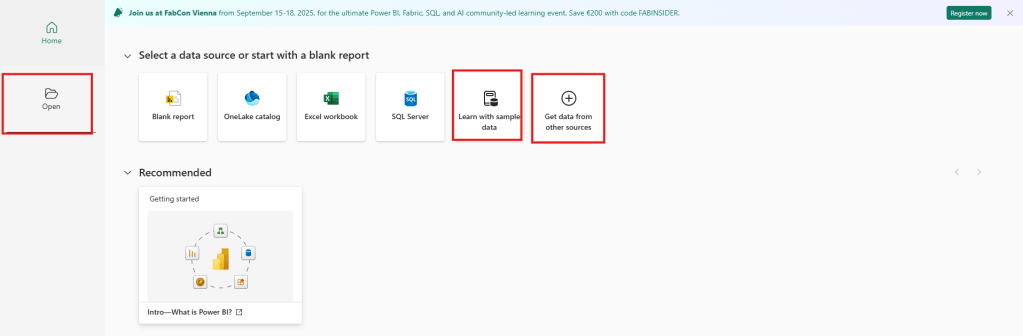
- Go to Home > Get Data > Excel
- Browse to your file and open it
- In the Navigator window, select your sheet or table
- Click Load to bring it in or Transform Data to shape it first
Power BI creates a semantic model and loads the data—ready for reporting.
File Path Changed? No Problem
If your source file moves, you can update the path in:
- Data Source Settings
- Query Settings
- Advanced Editor
Just be sure the new file matches the structure of the original one.
 Dynamics Decoded
Leave a comment