In any ERP system, especially Business Central, knowing who changed what and when is vital. Whether it’s a customer phone number or a general ledger posting, small changes can have big consequences.
That’s where Change Log and Field Monitoring features come in. They help track every modification — giving you visibility, control, and peace of mind.
The Change Log lets you track user-driven changes. You pick which tables and fields matter, turn on tracking, and let the software do the rest. The results show up in the Change Log Entries list, with details like user, date/time, old value, and new value.
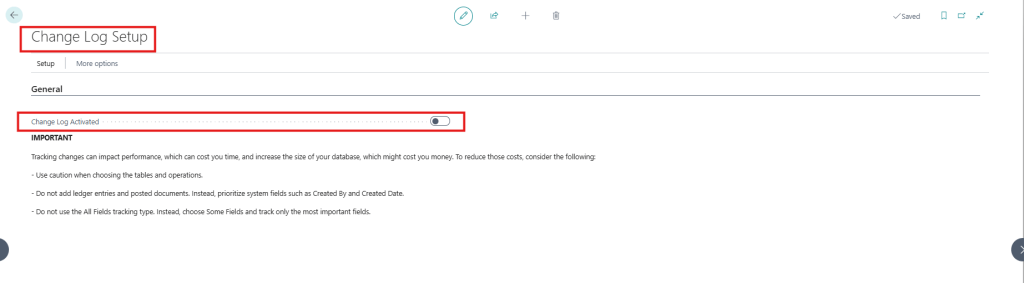
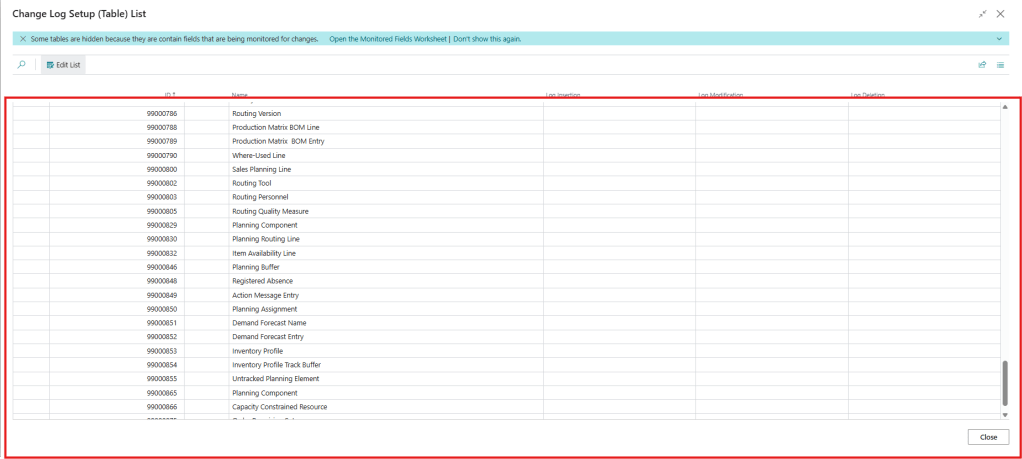
If you’re setting this up, be selective. Don’t go overboard tracking everything:
- Focus on master data and system fields like Created By and Created Date
- Avoid ledger entries and posted documents
- Skip “All Fields” tracking — instead, choose specific fields
One caveat: fields using the autoIncrement property won’t be tracked. Also, during upgrades, the system disables the log to speed up the process and resumes tracking after it’s done.
To activate it, go to the Change Log Setup page. You can specify which tables and fields to track, and even see who enabled or changed the setup.
If you’re using Field Monitoring (more on that below), the field won’t be available for regular change log tracking. This is to avoid duplicates.
Now, let’s say you want to make sense of what’s in the log. You can use Data Analysis mode directly on the Change Log Entries page. It’s flexible and interactive — no Excel export required.
For example, to figure out who changed what and when:
- Open Change Log Entries
- Switch to analysis mode
- Remove all columns
- Add: User ID, Date and Time, Table and Field Caption, Primary Key Values, Type of Change, Old and New Values
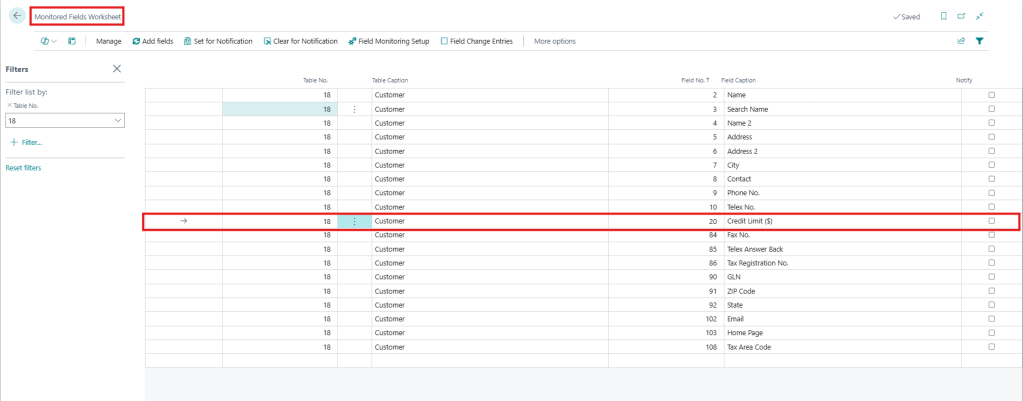
Example of Customer credit limit
Or, if you’re more interested in changes by table or field:
- Group by Table and Field Caption
- Add the same supporting fields (Date, User, Values, etc.)
Rename your tab to something like “Data Changes by Table” — it helps when you’re switching between multiple views.
Beyond regular data, there are Activity Logs that track background tasks like imports and exports. You’ll find these in pages like Incoming Documents or Posted Sales Invoices.
For extra control over sensitive data, use Field Monitoring. It’s more targeted:
- Pick fields like bank accounts, tax IDs, or legal names
- Set up email notifications (requires SMTP or Microsoft 365 email)
- See logs on the Monitored Fields Log Entries page
Use the wizard (Monitor Field Change Setup) to get started. You’ll assign which fields to track, who gets notified, and which account sends the alerts.
And yes — you can connect this to Azure Application Insights. This allows you to push field change telemetry. It can be used for reporting or automated alerting.
One last tip: enable Retention Policies to clean up old log entries and keep your system light and audit-ready.
In short, these features are not flashy, but they’re powerful. If you’re not using them yet, you are missing out. They offer one of the easiest ways to stay in control of your data.
Have you tried setting up Change Log or Field Monitoring? Drop your thoughts or experiences in the comments!
 Dynamics Decoded
Leave a comment